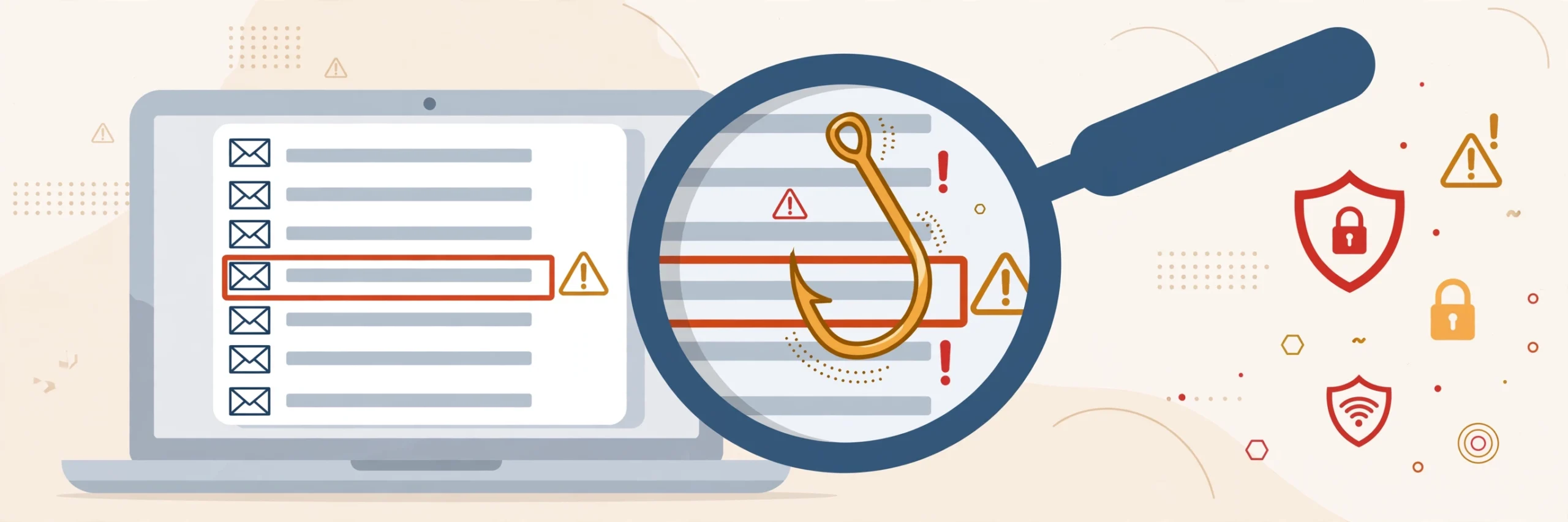
Phishing emails are fake messages designed to trick you into handing over passwords, bank details, or other sensitive information. They often pretend to be companies you trust — your bank, a delivery service, or even your employer. The good news: once you know the warning signs, most phishing attempts are easy to spot. Here’s what to look for.
1. Look Closely at the Sender’s Address
This is the single most reliable check. Scammers can make the display name say anything (“PayPal Support,” “Your Bank”), but the actual email address often gives them away.
- Hover over or tap the sender’s name to reveal the full address.
- Ask yourself: does the domain match the real company? An email claiming to be from your bank but sent from security-alerts@secure-banking-verify.net is a red flag. Real companies email from their own domains.
- Watch for subtle misspellings: paypa1.com (with the number 1), amaz0n.com, or extra words tacked on like apple-support-center.com.
If the address looks even slightly off, treat the email as suspicious.
2. Watch for Urgency and Threats
Phishing emails try to panic you into acting before you think. Classic lines include:
- “Your account will be suspended in 24 hours!”
- “Unauthorized login detected — verify immediately!”
- “You have an unpaid invoice. Pay now to avoid legal action.”
Legitimate companies do send important notices, but they rarely demand instant action via email with threats. If a message makes your heart race, slow down — that emotional reaction is exactly what the scammer wants.
3. Inspect Links Before You Click
Never click a link in a suspicious email to “check if it’s real” — that’s how people get caught.
- On a computer: Hover your mouse over the link (don’t click). Your browser will show the real destination in the bottom corner. If it doesn’t match the company it claims to be, don’t click.
- On a phone: Press and hold the link to preview the URL before opening it.
- Be suspicious of shortened links (bit.ly and similar) in emails from companies — legitimate businesses rarely hide their URLs.
A safer approach: if an email says there’s a problem with your account, open your browser and go to the company’s website directly by typing the address yourself, then log in normally.
4. Be Wary of Unexpected Attachments
Attachments are a common way to deliver malware. Be cautious if:
- You receive an invoice, receipt, or document you weren’t expecting.
- The file has an unusual extension (.zip, .exe, .scr) or a double extension like invoice.pdf.exe.
- The email pressures you to “enable macros” or “enable content” to view a document — this is a classic malware trick.
When in doubt, don’t open it. Contact the supposed sender through a trusted channel to verify.
5. Notice Generic Greetings and Sloppy Writing
Many phishing emails are sent in bulk, so they use vague greetings like “Dear Customer,” “Dear User,” or just your email address. Companies you do business with usually address you by name.
Also watch for:
- Spelling and grammar mistakes (though be aware: some modern scams are well-written).
- Logos that look slightly blurry or outdated.
- Email designs that feel “off” compared to what you normally receive from that company.
None of these alone proves an email is fake, but several together should raise your guard.
6. Never Send Sensitive Information by Email
No legitimate bank, government agency, or major company will ask you to reply to an email with your password, Social Security number, credit card details, or a verification code. Ever. If an email asks for any of these, it’s a scam — full stop.
The same goes for phone calls and text messages that follow up on a suspicious email. Scammers often work across channels.
I Clicked a Phishing Link — Now What?
Don’t panic. Acting quickly limits the damage:
- Disconnect from the internet if you downloaded or opened an attachment — this can stop malware from communicating outward.
- Do not enter any information on the page that opened. Close it immediately.
- Run a malware scan with your antivirus software.
- Change your passwords, starting with the account the email targeted and your email account itself. Use a different device you trust if possible.
- Enable two-factor authentication on your important accounts if you haven’t already.
- Contact your bank immediately if you entered financial details.
The Golden Rule
When an email asks you to do something sensitive — log in, pay, verify, download — stop and verify through a separate channel. Go to the official website yourself, call the number on the back of your card, or open the company’s official app. Thirty seconds of verification beats hours of recovering a stolen account.
Leave a Reply